---
title: "Installing and using the RDS Translator for Omnia.9"
slug: "installing-and-using-the-rds-translator-for-omnia9"
updated: 2024-12-17T14:30:28Z
published: 2024-12-17T14:30:28Z
canonical: "docs.telosalliance.com/installing-and-using-the-rds-translator-for-omnia9"
---
> ## Documentation Index
> Fetch the complete documentation index at: https://docs.telosalliance.com/llms.txt
> Use this file to discover all available pages before exploring further.
# Installing and using the RDS Translator for Omnia.9
## Scope
This document applies specifically to the Omnia.9 with regard to sending RDS and Streaming now playing data. However, this utility could be used to translate any data to anything that can receive data by HTTP Push.
## Description
RDS Translator is a simple but versatile system service to facilitate automatically updating the RDS and Streaming metadata parameters (such as the currently playing song title) in the Omnia.9, or any other product which supports metadata updates by HTTP push.
It can be run as a command-line application (for testing) or as a system service.
> [!WARNING]
> You will need to run it from a command prompt while setting it up.
While running, you can see real-time status information in the following ways:
- [http://127.0.0.1:7370](http://127.0.0.1:7370)
- telnet://127.0.0.1:32700
- Console (command prompt test run only, system services do not have windows)
## Preparation
The target system must have network access to the Omnia.9, and the IP of the target system must be in the Omnia.9's HTTP Access white list.
If you are able to visit **http://omnia9-ip:7380** in a web browser on the target system, then the target system has the required access.
The artist and song title must be available as one file on the target system (or on a network drive). The file can be either XML or Plain Text.
## Installation
All of the files needed to complete setup, including the program, instructions, and example files, are included in a zip file which you can [download by clicking this link](https://cdn.document360.io/57e3cd80-d493-453c-9672-ad1b043dadc3/Images/Documentation/rdstranslator-0-59.zip?sv=2026-02-06&spr=https&st=2026-11-12T11%3A57%3A03Z&se=2026-11-12T12%3A57%3A03Z&sr=c&sp=r&sig=TeB%2FMOor%2FcL2TntClUn7j4m3YK8rwpJbem8kwAJDJwc%3D). Download, save and then extract the files to a location on your computer.
Copy RDS_Translator.exe from the files you just extracted to a folder of your choice on the target system.
> [!NOTE]
> We advise **not** putting it inside Program Files to avoid UAC-related file redirection problems.
## Configuration
This is the tricky part because it is up to you to define the configuration so that RDS translator can parse your data. This document has a complete description of the capabilities of RDS Translator, to allow you to create the configuration, but this document can not do your thinking for you. Getting two different systems to talk and interact is always tricky.
Without further ado, let's get down to business. We'll refer to RDS Translator as RTR in the rest of this document.
RTR reads its configuration from its own folder and file name, but with the ini extension. Thus, if RTR is installed at C:\RTR\RDS_Translator.exe, it will read C:\RTR\RDS_Translator.ini. RTR continuously checks the configuration file for updates, and will automatically re-initialize itself. You need never manually restart the service to apply a new configuration.
## XML Parsing
Let's say you're using AUTOMATON DJ STBH automation system, and it outputs an XML file with all pertinent info at c:\automaton_dj_stbh\now_playing.xml
Here are example contents of the XML file:
```xml
PLAY
12/07/12 12:34:56
MUSIC
12346
Last night a DJ lost his job
173.80
A-ROTATION
Indeed
Sign of the times
00:03:20
```
RTR can parse this quite easily.
### Example INI file
```bash
[Input0]
file=c:\automaton_dj_stbh\now_playing.xml
type=xml
replace0=" "," "
replace1="&","and"
trim=1
uppercase=1
filter_accents=1
[Output0]
format0=Syndicate FM - %xml_play:title% - %xml_play:artist%
url0=http://127.0.0.1:7380/parameter/fm/rds/rds_rt=%format0%
```
#### Input Section
We specify **type=xml** because the default is plain text, which uses entirely different processing.
You may use up to 100 replace statements to clean up the source data. In this example we replace double-space with single space, and & with and. Search-and-replace is case sensitive.
Many radios are extremely limited in what characters can be displayed. So, we use the following statements:
- f**ilter_accents=1** means for example Mañana becomes Manana.
- **uppercase=1** means Manana becomes MANANA
- **trim=1** means " MANANA " becomes "MANANA"
The processing order is always:
- 1. Retrieve Data
- 2. Filter Accents
- 3. Convert to Upper Case
- 4. Custom search-and-replace
- 5. Trim
> [!WARNING]
> The order of the statements in the [InputX] section does not affect the processing order.
This processing is applied individually to each retrieved XML reference in the format statement of the output section.
#### Output Section
For the output section of the INI file, we need to understand and review the actual data that comes from the automation system so that we can reference those XML data fields in our output. For example, our output format (format0 in this example) will send the data formatted like "Syndicate FM - Title - Artist"
```plaintext
format0=Syndicate FM - %xml_play:title% - %xml_play:artist%
```
In our XML example, you can see that Title and Artist are "nested" inside the XML Tag. Tags open with and then close with a backslash like Everything between those two markings is considered inside that tag. So this is how we get "xml_play:title" and "xml_play:artist"
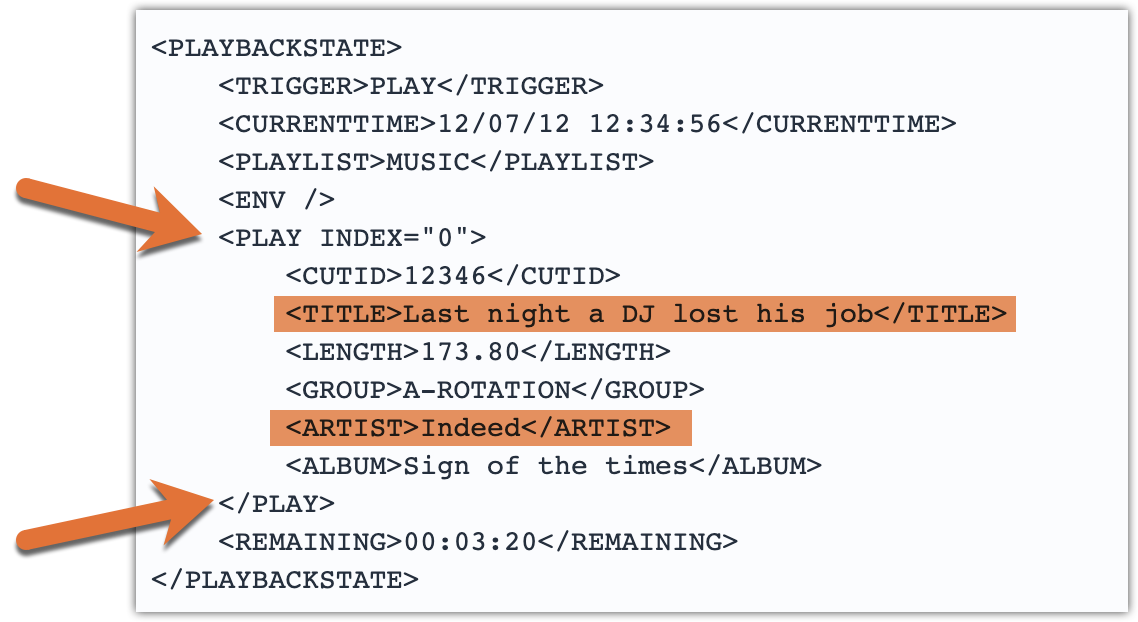
The syntax for the XML references is:
- `%xml_key:key:key%`
- The key hierarchy can be any depth. Comparison starts at the deepest level.
Thus, in the following hierarchy examples;
```xml
Disco
Abba
Abba Gold
Dancing Queen
Knowing Me, Knowing You
```
**%****xml_artist****:****songtitle****%** fetches "Knowing Me, Knowing You"
But
%xml_songtitle% and %xml_album:songtitle% both fetch "Dancing Queen" because it starts at the "deepest" level
There is no need to write %xml_playlist:artist:album:songtitle% even though you can.
## More on XML Properties
There are two distinct ways of storing XML data. Data can be plain text outside of tags, but it can also be properties inside tags.
Example:
```xml
Friday night and the lights are low
```
In this case we can use `%xmlprop_hierarchy%` instead of `%xml_hierarchy%`.
` %xmlprop_parenttag:karaoke:song:Artist%` returns Abba
`%xmlprop_karaoke:song:Title%` returns "Dancing Queen"
You can mix `%xmlprop_%` and `%xml_%` at will to match your source data.
However, in the example above, due to the indentation, `%xml_karaoke:song%` returns
```sql
[CR][TAB][TAB][TAB]Friday night and the lights are low[CR][TAB][TAB]
```
Computers are utterly unforgiving. We can clean it up by adding the following statements to the Input section:
```sql
replace0="[CR]",""
```
and
```sql
replace1="[TAB]",""
```
It will then return just "Friday night and the lights are low".
## FORMAT specifiers
You can have up to 100 format specifiers, and you can enter any text you like around the XML tags.
For example, the following format specifier:
```plaintext
format5=Now Playing at Syndicate FM: %xml_artist% with %xml_songtitle%
```
becomes "Now Playing at Syndicate FM: ABBA with DANCING QUEEN"
The text in the format specifier is not processed by search/replace, trim, uppercase or any other input statements. What you write here is what you get.
If you wanted to change the format text at different times, for example having a different format for the morning show, you could set up a Windows Scheduled Task to call a command line utility like SetIni to update the format line in the RTR ini file. However, that's outside of the scope of this document.
## URLs in the output section
This is the final destination for the formatted data. You can have up to 100 URL specifications, and each one can reference as many format specifications as you want.
Example:
```plaintext
url0=http://123.34.45.56:7380/parameter/fm/rds/rds_rt=%format5%
```
Any referenced format string will have special characters escaped automatically when the HTML is created. You do not need to manually account for this.
For example, the following format output:
Now Playing at Syndicate FM: ABBA with DANCING QUEEN
becomes
Now%20Playing%20at%20Syndicate%20FM%3A%20ABBA%20 with%20DANCING%20QUEEN
So, the actual HTTP request that will be made to the Omnia.9 is;
```plaintext
url0=http://123.34.45.56:7380/parameter/fm/rds/rds_rt=Now%20Playing%20at%20Syndicate%20FM%3A%20ABBA%20with%20DANCING%20QUEEN
```
If you then look up the RDS RT parameter in the Omnia.9, you will see that it has been updated to "Now Playing at Syndicate FM: ABBA with DANCING QUEEN" which is exactly what we wanted.
## Plain Text Processing
Plain text parsing is tricky in a different way because there are no tags to go by.
RTR offers several ways of getting the job done.
The input data is a file stored at C:\AutomationSystem\NowPlaying.txt
```plaintext
Now Playing
Artist
“Ace of Base”
Song
All That She Wants
```
Example RTR configuration file:
```plaintext
[Input0]
file=c:\AutomationSystem\NowPlaying.txt
replace0=" "," "
text0=find="Artist" line=1 uppercase=1 filter_accents=1
text1=find="Song" line=1 trim=1 filter_accents=1 filter_quotes=1
[Output0]
format0=%text0% - %text1%
url0=http://127.0.0.1:7380/parameter/fm/rds/rds_rt=%format0%
```
`text0` returns "ACE OF BASE"
`text1` returns "All That She Wants"
Thus `format0` returns "ACE OF BASE - All That She Wants".
Here's the way this works. The "find" command searches for the line that contains the specified text. The "line" command then adds an offset. In this case, we're using that to get the next line (line=1), after the one that contained "Artist". The "find" command is, of course, optional.
`text0=line=0` would return "Now Playing"
`text0=line=2` would return "Ace of Base"
You can also search within a line.
Example data:
```plaintext
Now Playing
Artist: Ace of Base Song: All That She Wants
```
`text0=line=1 begin="Artist:" end="Song:" trim=1` returns "Ace of Base"
`text1=line=1 begin="Song:" trim=1` returns "All That She Wants"
Thus, format= in the [Output0] section of the ini file looks like this;
```plaintext
format=%text0% - %text1%
```
and returns "Ace of Base - All That She Wants"
- `trim=1` removes spaces before **and after** the resulting text.
- You may also use `uppercase=1` and `filter_accents=1` which function just as with XML data.
## HTTP PUSH support
Allows RDS translator to accept INCOMING data through HTTP GET queries.
Works similar to Plain Text processing, except the type is push, and the line number is always 0.
You can then push data to RDS translator as follows:
http://127.0.0.1:7370/input0?set=whatever+data%20you%20like
Example:
```plaintext
[Input0
type=push
Text0=line=0
```
## Application-specific Recommendations
### RDS PS (Programme Service)
Most RDS-radios display only the 8-character PS (Programme Service) field.
This field was never designed to be dynamic. However, people use it that way anyway. The Omnia.9 has a few features to facilitate this. For example, sending the following RDS PS string in the Omnia.9:
```plaintext
"<< Daddy Yankee - Gasolina /10s:FUTURAFM/2s:CALL US/4s:555-0911"
```
Will result in:
"Daddy Yankee - Gasolina" scrolls across the display 2 characters at a time (the default)
"FUTURAFM" is displayed for 10 seconds
"CALL US" is displayed for 2 seconds
"555-0911" is displayed for 4 seconds
> [!NOTE]
> Notice the extra spaces around the title in the PS string -- this is necessary to make the text enter from outside the display. An example format string for this might be:
```xml
[Output0]
format0="<< %xml_artist% - %xml_title% /10s:FUTURAFM/2s:CALL US" etc.
url0=http://127.0.0.1:7380/parameter/fm/rds/rds_ps=%formatX%
```
### RDS RT (RadioText)
RadioText doesn't need nearly as much trickery. It can send 64 characters for a radio to display in any way it likes. Some radios scroll smoothly, others have a big enough screen to display the whole message, and some display when the listener presses the RT button.
```xml
[Output0]
format0=Syndicate FM - %xml_play:title% - %xml_play:artist%
url0=http://127.0.0.1:7380/parameter/fm/rds/rds_rt=%format0%
```
### Streaming Metadata
Streaming metadata should not include the station name at all, because it is already included in the stream header. Best practice is to simply include the artist and song title and leave it at that. Web address (URL), Station Name, Genre all have their own dedicated fields and do not need to be updated in real-time.
Because RTR supports multiple Input and Output sections, you can read multiple files, or even the same file multiple times, from a single RTR service.
Input0 belongs to Output0, Input1 belongs to Output1 etc.
Output1 can only read data from Input1.
## Reading files from a network drive
RTR will happily read a file from a network drive, but when running as a service, special care must be taken. Drive letter mappings (map network drive) will not be accessible from system services.
You must:
- Specify the file name as [\\server\share\path\filename.txt](https://support.telosalliance.com/server/share/path/filename.txt)
- Install the service by executing RdsTranslator.exe –i
- Make the RDS translator service login as your regular user name:
- Open the service control manager (services.msc)
- Find the RDS translator service in the list
- Right-click, select Properties
- Click on the Log On tab
- Log on as: This Account
- Browse
- Enter your user name
- Click Check Names
- Click OK
- Enter your password
- Confirm your password
- OK
- Right-click the service in the list, select Restart
## Testing and Finishing
RTR can run as either a command-line application or as a service. When running from a command prompt, type RDS_Translator ? for a list of command-line options.
> [!WARNING]
> We recommend running as a command-line app when testing because you then have immediate feedback in the console.
However, when you have the configuration set up the way you want to, it's much better to run RTR as a service, because then there is no window to get in the way, and you do not even have to be logged into the computer.
Even when running as a service, you can get runtime info by visiting the built-in HTTP server at http://RTR-computer-ip:7370 from a web browser. Remember to add a firewall exception for RTR if you want to access it over the network. Locally, you can access http://127.0.0.1:7370 and no firewall exception is necessary.
## Configuration File Command Reference
#### Plain Text
```sql
[InputX]
file=input filename
type=text
replaceX="find","replace"
textX=find="Artist" line=0 uppercase=1 filter_accents=1 trim=1 begin="" end=""
textX=find="Artist" line=0 uppercase=1 filter_accents=1 trim=1 rbegin="" rend=""
[OutputX]
formatX=%textX%
urlX=http://url/url=%formatX%
```
#### XML
```xml
[InputX]
file=input filename
type=xml
replaceX="find","replace"
uppercase=1
filter_accents=1
trim=1
[OutputX]
formatX=%xml_parent:child:grandchild% - %xmlprop_parent:child:property%
urlX=http://127.0.0.1:7380/parameter/fm/rds/rds_ps=%formatX%
urlX=http://127.0.0.1:7380/parameter/fm/rds/rds_rt=%formatX%
```
#### HTTP push
```http
[InputX]
type=push
replaceX="find","replace"
textX=find="Artist" line=0 uppercase=1 filter_accents=1 trim=1 begin="" end=""
textX=find="Artist" line=0 uppercase=1 filter_accents=1 trim=1 rbegin="" rend=""
[OutputX]
formatX=%textX%
urlX=http://url/url=%formatX%
```