
Scope
This document addresses possible configuration issues in Windows 10/11 that might cause high latency affecting audio playback.

First, these suggestions are provided here with the hope that you will find them helpful. We make no warranties about the appropriateness of these to your system or if it will, or will not, solve your particular issue. If you are not comfortable with or do not know how to apply these suggestions, contact your company's IT staff. In other words, proceed at your own risk.
Credit where credit is due.
Some of these solutions are captured from an article found on The GEEK Page. Click here for their article.
Thanks to Walter Cox from Positive Life Radio for the suggestion.
Description
DPC (Deferred Procedure Call) is a Windows mechanism that makes the system execute low-priority tasks later when the system is idle and high-priority tasks first. As crucial as this arrangement is, it has a problem of latency at times. The cause behind high DPC latency is an issue with device drivers.
Determining possible causes
To determine the cause of DPC latency spikes, install LatencyMon from Resplendence Software. At the time of writing, v7.31 Home Edition is sufficient to perform effective diagnosis, though it may be subject to change.
Stop the Axia IP-Audio Driver services.
Run LatencyMon for a few minutes.
The 5th bar with heading “Hgihest reported DPC routing execution time” will report the process with the highest recorder latency.
Restart the Axia IP-Audio Driver services.
As the possibilities for the processes causing latency are extremely variable, we cannot provide a comprehensive guide for each process.
Most often, it will highlight a driver or a third-party program.
Possible solutions
Attempt the following troubleshooting steps sequentially to resolve the issue:
1. Remove/migrate non-critical software
If LatencyMon reported a software you installed, determine if it’s critical to the function of the machine. If not, consider removing it or migrating it to another machine.
2. Update the drivers
It's worth looking at all of your drivers and ensuring you have the most updated drivers for the hardware and your Operating System.
3. Change the power plan
The power plan could be the main culprit behind DPC latency since the balanced power mode confuses which task to prioritize and which not to. The power saver plan will shift the focus to high-priority tasks, and the high-performance plan will accelerate all tasks.
Press Win + R to open the Run window and type the command powercfg.cpl. Hit Enter to open the Power Options window.
On the list on the left-hand side, click on Create a power plan.
Select any power plan other than the Balanced one.

4. Disable dynamic ticking and update the graphic card’s drivers
As suggested above, DPC latency could be blamed on drivers more than anything, and the main culprit is often assumed to be the graphic drivers. The following procedure could help with the same:
Press Win + R to open the Run window and type the command cmd.
When the command prompt appears, right-click and choose Run as administrator.

Enter the following command:
bcdedit /set disabledynamictick yes
Wait for the command to complete, exit the command prompt and apply any updates to the graphics drivers.
5. Temporarily disable Firewall
The Firewall is another probable reason behind DPC latency. While you may not be able to do away with it for security reasons, it would be wise to check if it interferes to help isolate the cause. Disable the Firewall temporarily and check if it makes a difference.
6. Disable Internet Protocol version 6 for the AoIP NIC
Press Win + R to open the Run window and type the command ncpa.cpl. Hit Enter to open the Network Connections window.
Double-click on your network adapter for AoIP and click on Properties.
In the following list, uncheck the box next to Internet Protocol version 6.

Click OK to save the settings.
7. Disable the Bonjour application
The Bonjour application by Apple is known to cause issues in Windows systems.
Press Win + R to open the Run window and type the command control panel. Press Enter to open the Control Panel.
Open Programs and Features. It will display the list of installed programs.
If Bonjour exists, right-click and uninstall it.
8. Disable D0 Packet Coalescing
Press Windows key + R from the keyboard to open the Run command.
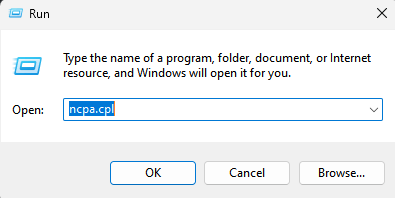
In the Run command search box, type ncpa.cpl and press OK to open the Network connections window.
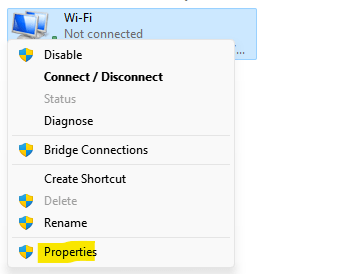
Now, right click on your network adapter and click Properties
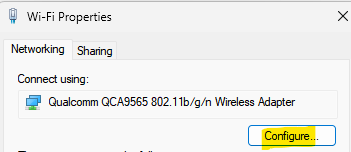
Click Configure
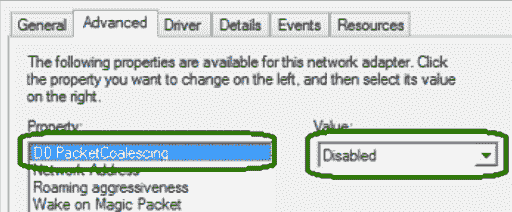
Click on Advanced Tab
Click on D0 Packet Coalescing to select it and then choose disabled.
Let us know how we can help
If you have further questions on this topic or have ideas about improving this document, please contact us.